
Automation
Import Existing Listings
Pull active marketplace listings into SECND on a schedule and optionally crosslist them.
Last updated 2026-11-17
In short
Set it up
Open the template
Choose the rules
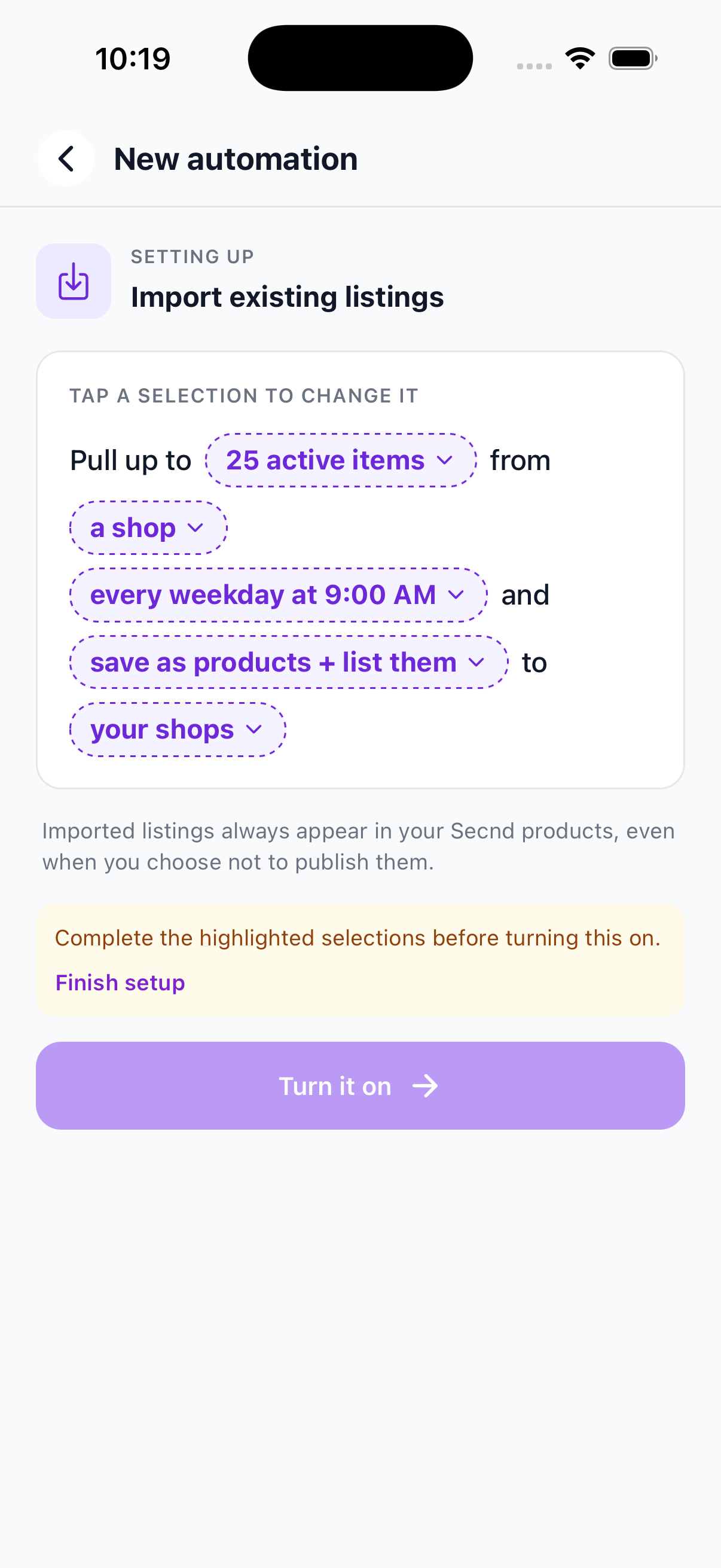
Review and enable
Manage it
Check activity
Pause, edit, or run now
Common issues
Heads up
Source and filters
Tap the source in the sentence to open Where should we import from? Pick one connected shop under Import from. Under Filters · Optional you can narrow what comes in:
- Only recent items: import only items created within a set number of days. It starts at 30 when you turn it on; enter any number above 0.
- Required source fields: Only import items where every selected field is already filled in. Choose from Title, Description, Photos, Price, Brand, Category, Size and SKU.
- Shopify collections (Shopify only): pick collections to import from. Leave all unselected to import from every collection.
What to do with imports
Tap the action in the sentence to open What should we do with imports?
- Save to your products list: import without publishing anywhere else.
- Save as products + list them: import, then publish to the shops you choose. This is the default.
Two AI switches, both off by default:
- Fill missing details writes a title or description only when one is missing.
- Regenerate listing content refreshes imported titles, descriptions and tags with AI. Turning it on also turns on Fill missing details.
AI assist uses AI credits (see Choose a plan). Imported listings always appear in your Secnd products, even when you choose not to publish them.
Matches and duplicates
Each run first refreshes the source shop. A listing that is the same item as a product already in SECND is linked to that product instead of creating a second one. When you list imports, an item already listed on one of your destination shops is skipped. To pick listings by hand or refresh every listing at once, see Importing Your Inventory and Quick sync or full sync.
Defaults and choices
- Items per run: 25. Presets are 10 per run (gentle pace), 25 per run and 50 per run (catch up fast), or type a custom number from 1 to 50.
- Schedule: every weekday at 9 AM. Tap it to pick another preset or a custom time and days (see Set Up Automations).
- Action: save as products and list them, with AI off and no filters.
The card sums it up, for example Pull up to 25 active items from Shopify and list them to eBay.
More issues
Heads up
Note
Note
Have a question that isn't answered here? .