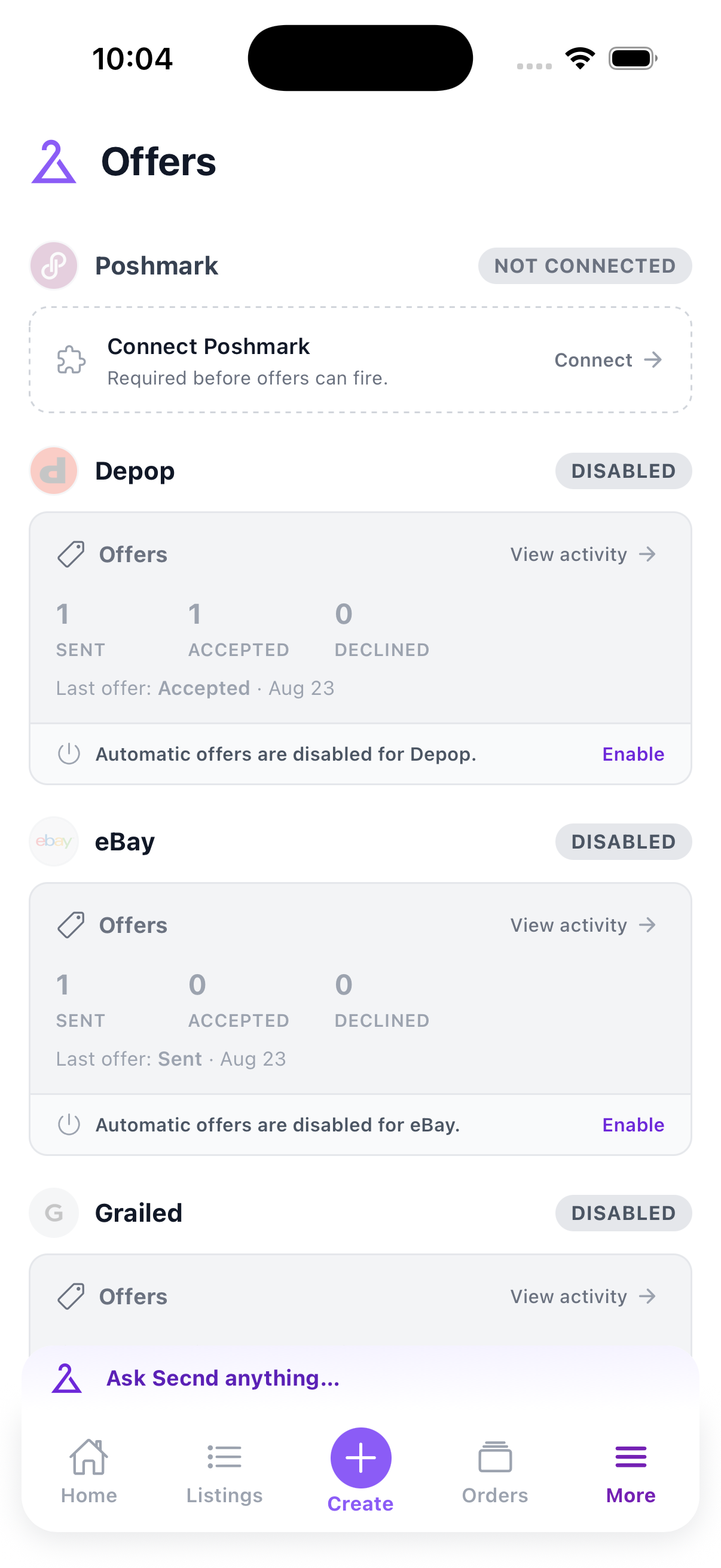
Offers are configured per marketplace. A connected account can still show offers as disabled until the marketplace supports the rule and the feature is enabled.
2.
Connect an offer marketplace
Automatic offers currently work with Poshmark, Depop, eBay, and Grailed. The marketplace must show as connected before SECND can send offers. Tap Connect on this screen if needed.
Note
Automatic offers are a paid feature. SECND shows the subscription requirement before it enables a rule.
Tap Enable for a connected marketplace. Set the discount, timing, item eligibility, and any marketplace-specific limits shown in the form. Save the rule set and confirm that the marketplace card reads Enabled.
Each marketplace has its own rule set. Changing Poshmark rules does not change Depop, eBay, or Grailed. Tap Settings on an enabled card to revise its rules or turn it off.