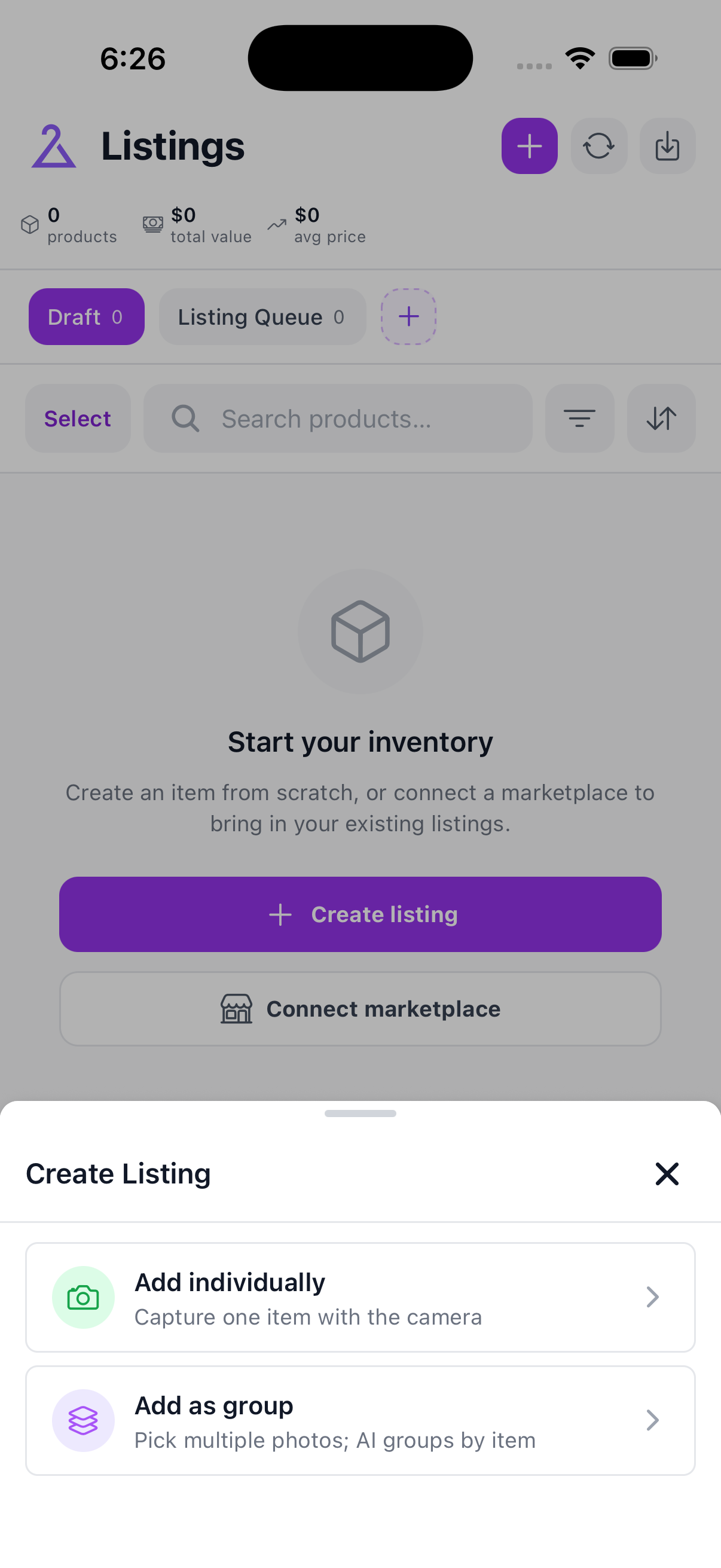
Tap Create listing. Choose Add individually for one item or Add as group when several photos need to be grouped into items.
Sync listings refreshes listings already known to SECND. The Import listings action lets you choose marketplace listings to bring into your SECND inventory for the first time.
2.
Read listing counts and status
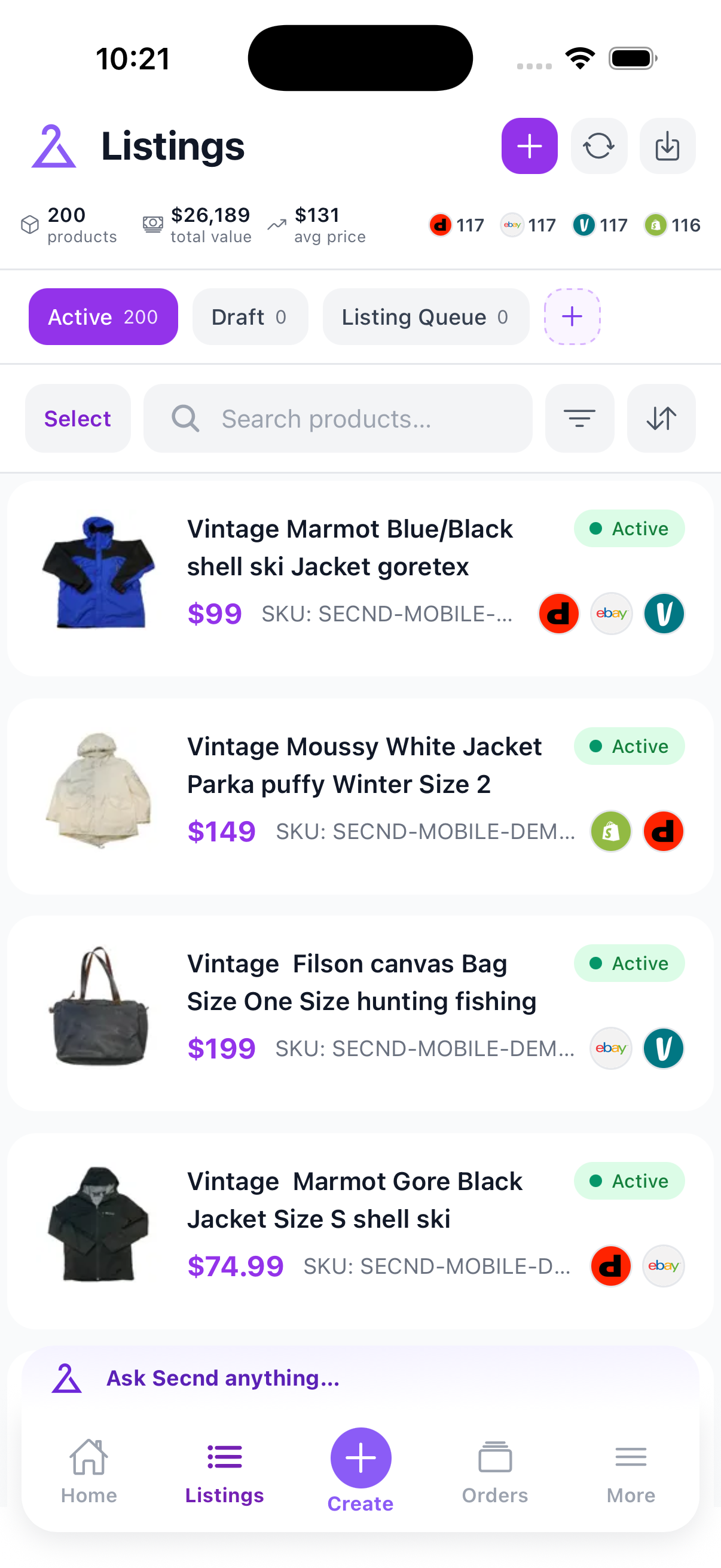
The populated view shows the counts that matter before you take an action. Open a row to edit one item, or tap Select listings to work in bulk.
Use search for a title or SKU. Filter narrows the list by status, marketplace, or saved view. Sort changes the order. Tap Select listings before applying actions to several items.