
Connections
 Connect Shopify
Enter your Shopify domain and approve the install to connect your store.
Last updated 2026-09-29
In short
.myshopify.comdomain, approve the SECND app on Shopify, and you're done. SECND then has access to list, update, and read orders.Before you start
You need owner or staff-with-app-permissions access to your Shopify admin so you can install the SECND app. SECND works with any Shopify plan.
Note
.myshopify.com domain. You can find it in your Shopify admin under Settings → Domains if you normally use a custom storefront URL.Connect SECND
Open Connect
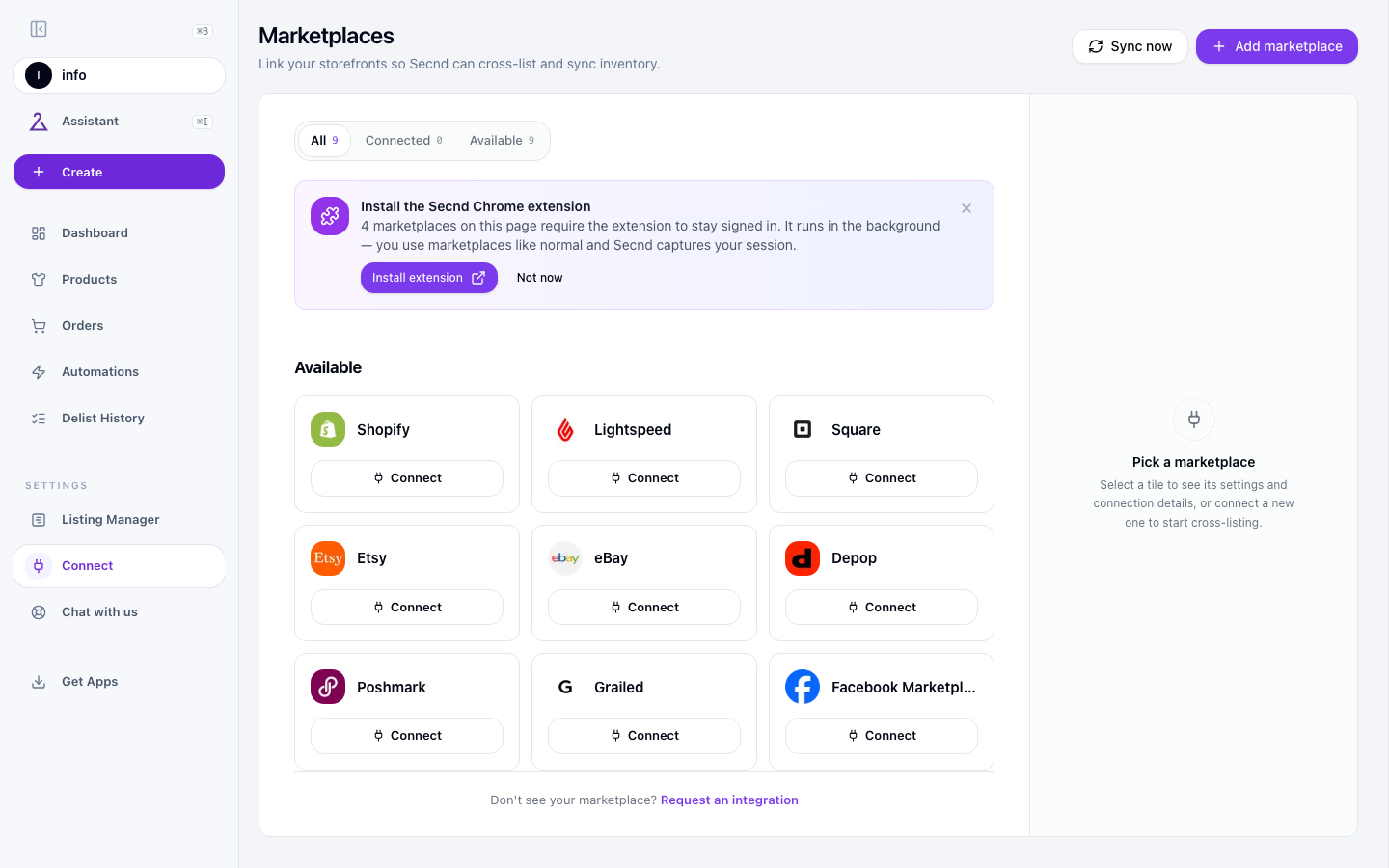
Click the Shopify card
Enter your shop domain
.myshopify.com domain (e.g. yourstore.myshopify.com) and click Continue to Shopify.Approve on Shopify
Land back on Marketplaces
Advanced: use your own app
If your store can't install the SECND app, create your own Shopify app and connect SECND through it. You create the app once in Shopify's Dev Dashboard, then paste its Client ID and Secret into SECND.
Heads up
<, >, or \.Create the app
dev.shopify.com. You can also get there from your Shopify admin under Settings → Apps → Develop apps. Click Create app and name it anything, such as SECND.Set the App URL
https://www.secnd.caAdd the access scopes
read_customers,write_customers,read_inventory,write_inventory,read_locations,read_orders,write_orders,read_publications,write_publications,read_products,write_products,read_metaobjects,write_metaobjects,read_files,write_filesAdd the redirect URL
https://www.secnd.ca/api/integrations/shopify/oauth/callbackRelease the app
Copy the Client ID and Secret
Connect in SECND
.myshopify.com domain, the Client ID, and the Secret, then select Connect Shopify. Approve the install when Shopify opens.Settings to configure
Open Shopify in Integrations. Its settings include the fields below.
Use Store Tags
When on, SECND uses the tags your Shopify store already applies to products instead of generating new ones. Leave on if you have a tag taxonomy you rely on for collections or filtering.
Publish Status
Whether new products SECND pushes are published to your storefront immediately (Active) or held back as Draft. Draft is the safe default while you're still tuning content.
Vendor Field
Whether Shopify's Vendor field is populated with the product's brand or your shop name. Use Brand if your storefront filters by brand; use Shop name if you resell consigned goods under your own banner.
Sales Channels
Which Shopify sales channels new products are published to: All channels, Selected channels (pick the list in the SECND desktop app), or Do not publish. Most stores leave this on All channels.
On Delist
What happens to the Shopify product when SECND delists it. Out of stock drops inventory to zero but keeps the product page live; Draft hides it from the storefront; Delete permanently removes it (SECND asks you to confirm).
Common issues
Have a question that isn't answered here? .