Connections
 Connect Lightspeed Retail (X-Series)
Connect Lightspeed X-Series so your in-store sales sync to SECND.
Last updated 2026-05-24
In short
Before you start
This guide covers Lightspeed X-Series (formerly Vend). If you're on Lightspeed Retail R-Series or Restaurant, the setup is different — contact support for those.
You need owner-level access to your Lightspeed account so SECND can register webhooks during the connect flow.
Step-by-step
Open Connect
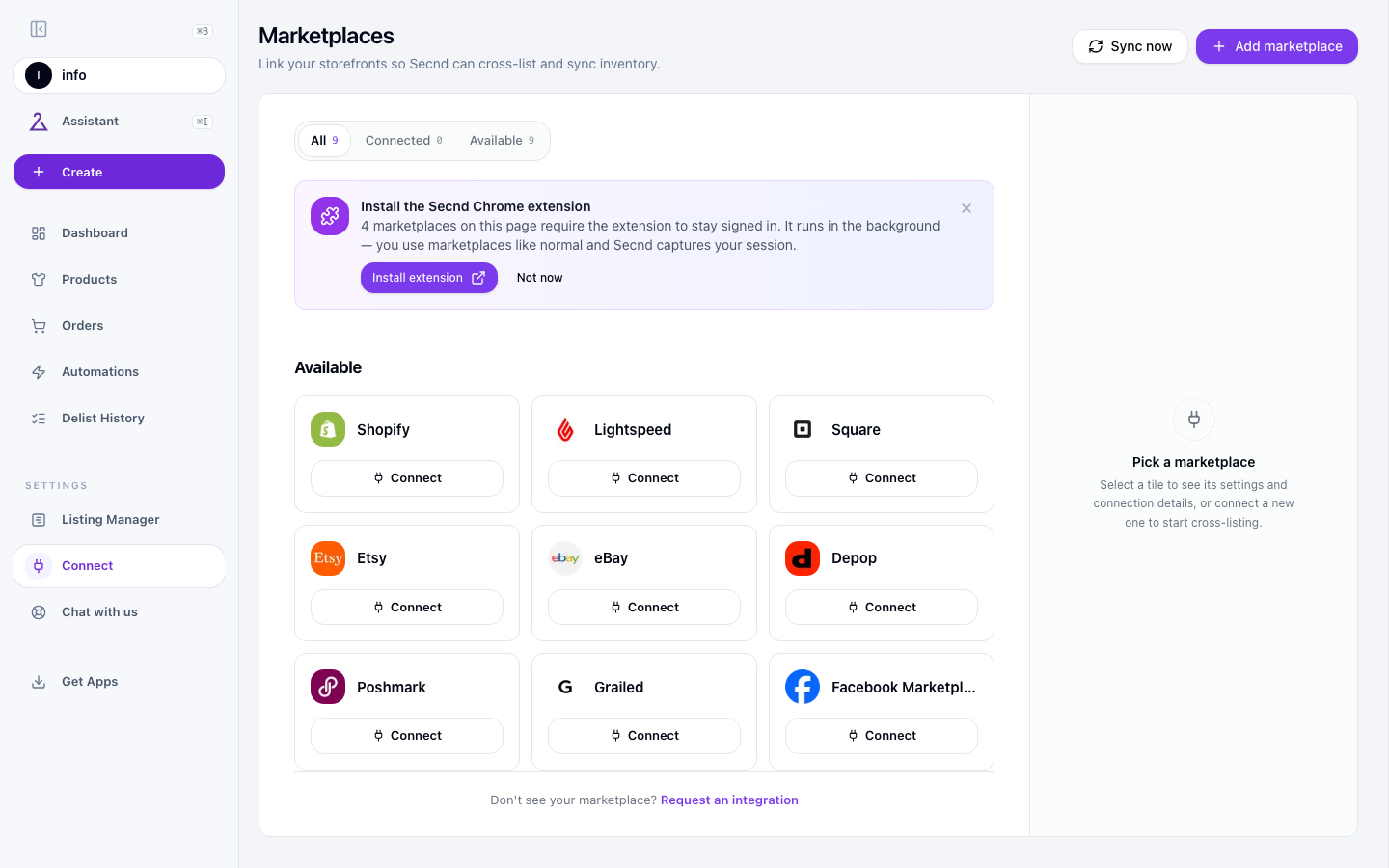
Click Connect on the Lightspeed card
Sign in and approve
Confirm Connected
inventory.update, product.update, sale.completed). When the Lightspeed card shows Connected, you're done.What syncs
Products (with variants), inventory levels, and sales. Inventory updates fire on every register sale via the inventory.update webhook, so your online channels stay accurate without polling.
Lightspeed doesn't have a Settings panel inside SECND yet — the connection is on or off. Per-outlet mapping and inventory policy live on the roadmap.
Common issues
Have a question that isn't answered here? .