
Inventory Management
Manage Orders
Review marketplace sales, find an order, and check what SECND delisted after a sale.
Last updated 2026-11-17
In short
Find an order
Read the order summary
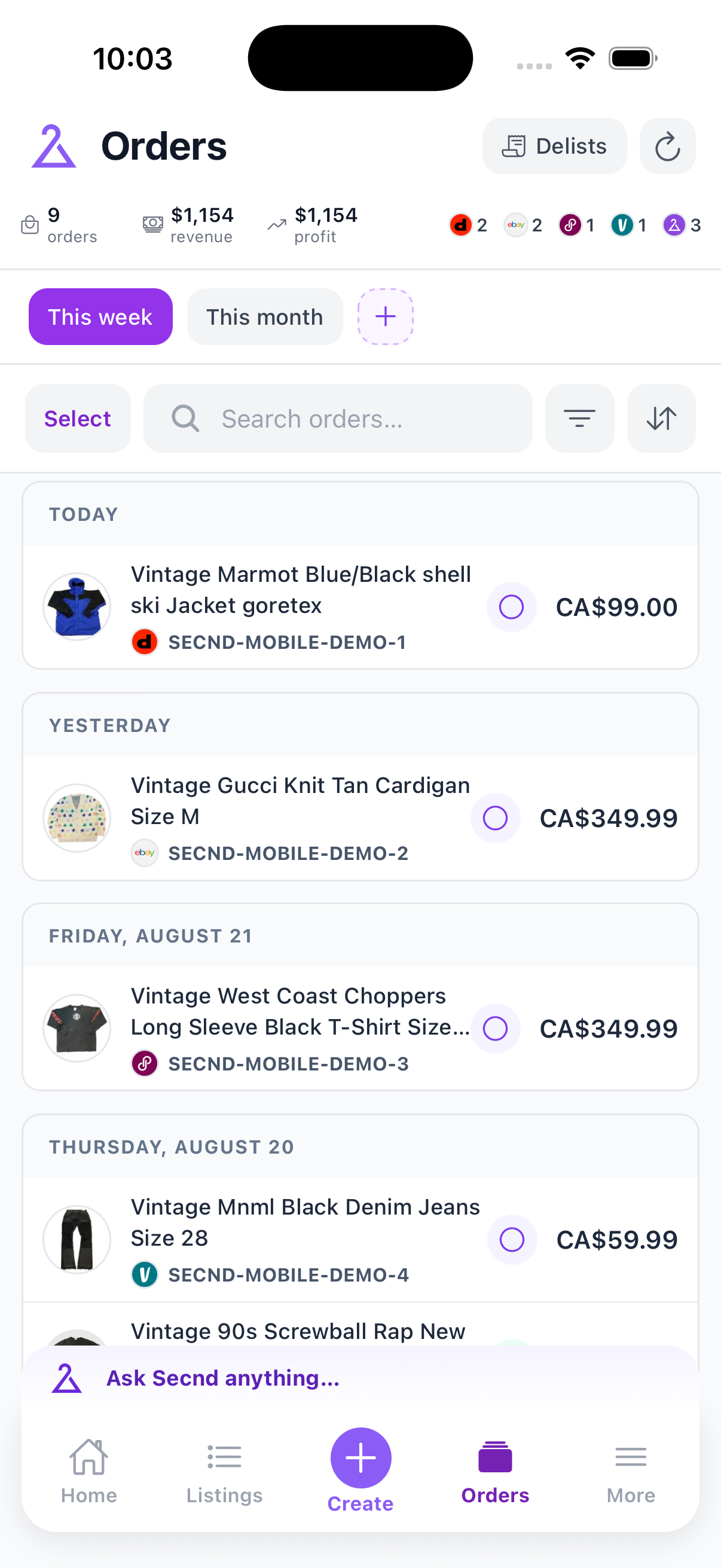
Type a product title or SKU in Search orders…. The filter button narrows by Marketplace, Date (Today, Last 7 days, This month, This year, Last year, All time), Price and Status; tap Apply filters. The sort button orders by Date sold, Order total or Date created (when SECND imported the order). Tap + after the tabs to save the current filters as your own view.
Tap an order to open Order Details. Tap the sale price to change it with Edit sale price if the buyer paid a different amount.
Note
Work with several orders
Tap Select, tick orders, then choose:
- Sync: refresh the selected orders from their marketplaces.
- Status: set Unfulfilled, Completed or Cancelled.
- Relist: put sold or deactivated items from these orders back on sale. Choose the items and marketplaces, then tap Relist now. Deleted products stay deleted. Relisting works like crosslisting.
- Edit costs: enter Shipping cost, Other costs or Cost of goods, then Apply to selected.
- Remove: removes the orders from your orders and sales totals. Marketplace syncs will not add them back.
Check what SECND delisted
When SECND records a sale, it sends a delist to every other marketplace where the same item is currently live, so it cannot sell twice. Automatic delisting covers how this works with multi-quantity items.
Open Delist history
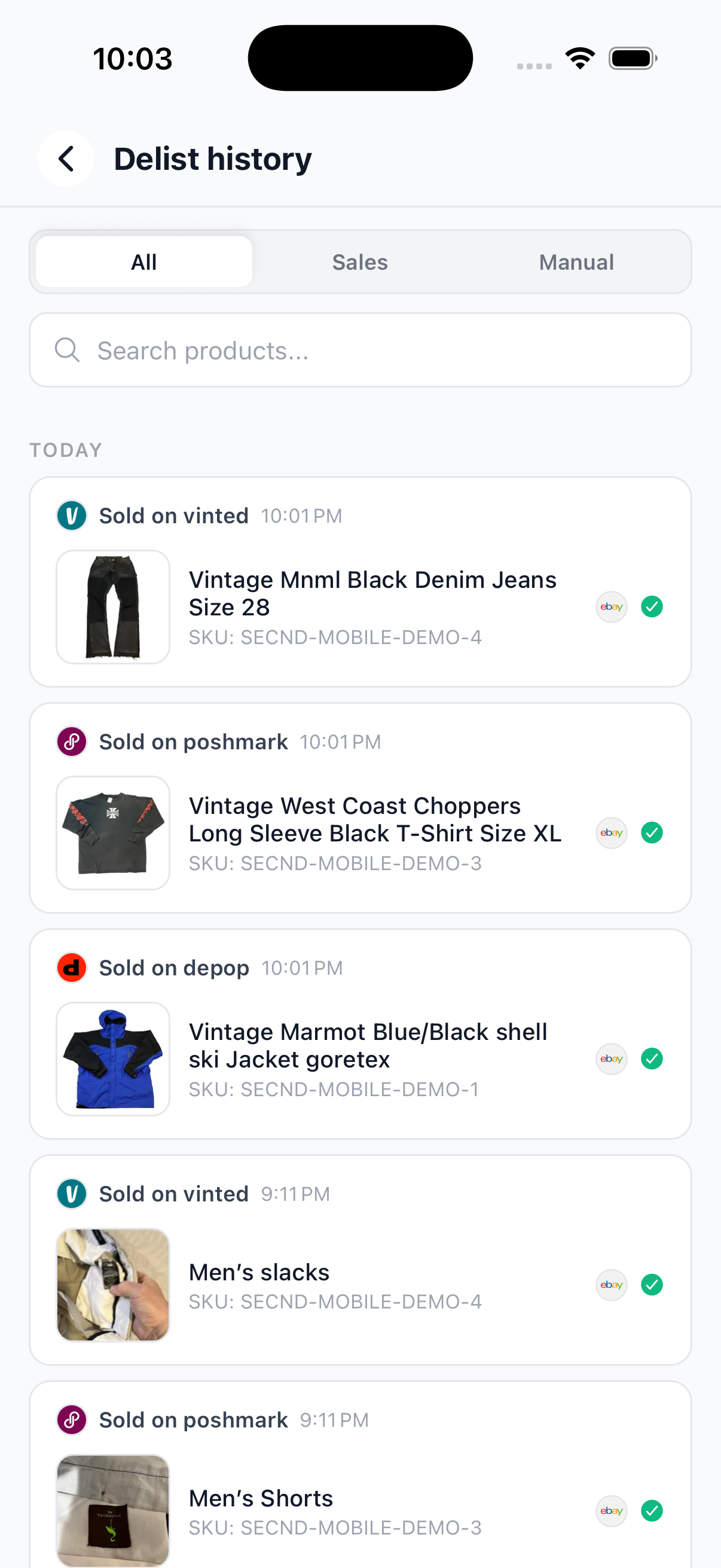
Each event shows where it came from (Sold on a marketplace, Manual delist, or Delist & merge), the time, the product and SKU, and an icon for each marketplace SECND delisted from:
- a check mark: removed;
- a clock: waiting to run;
- a spinner: in progress;
- Retry: failed; tap to try again;
- Reconnect: failed because that marketplace connection needs to be reconnected.
Failed events have a red card, and a banner counts the products that "need attention" with Retry All. More on delisting by hand is in Delist Listings.
Common issues
Have a question that isn't answered here? .