Remove one or more marketplace listings and check what happened afterward.
Last updated 2026-08-23
In short
When an item sells, SECND automatically removes its other marketplace listings. For multi-quantity inventory, SECND decrements the available quantity instead. You can also delist, mark as sold, or delete items yourself from Listings.
SECND handles marketplace sales automatically. A sale removes the same item from its other marketplaces. If the listing represents more than one available unit, SECND reduces inventory instead of removing the listing too early.
1.
Keep marketplaces connected
Automatic delisting depends on current marketplace connections and matched listings. Fix any connection warning under More → Integrations.
2.
Review the result
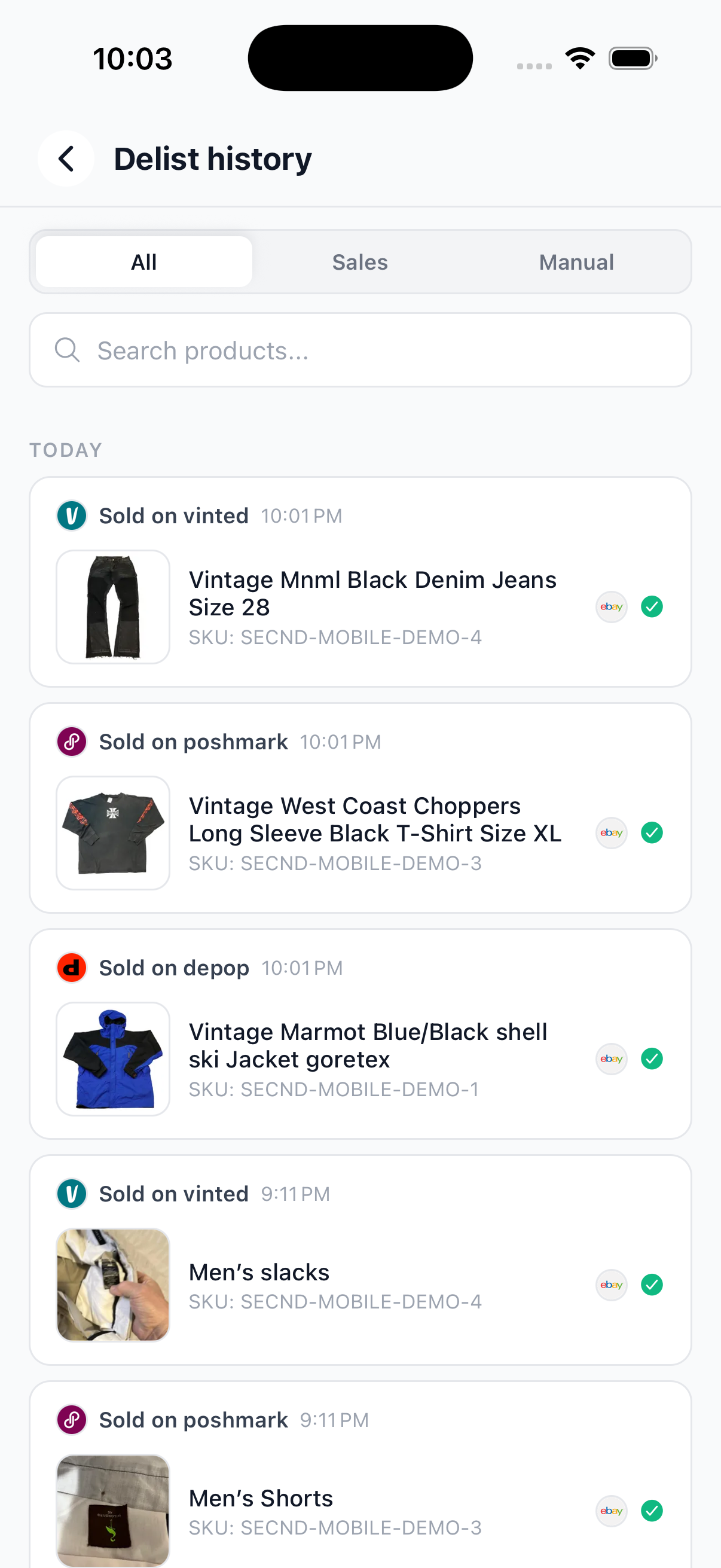
Open Delist history after a sale to see the source marketplace and every target listing SECND updated.
Use this when the item sold somewhere SECND did not detect, such as an in-person sale. Choose where it sold and the sold price. SECND delists its marketplace listings, records the sale, and moves the item to Sold.
7.
Delist & delete
Use this when you want the item removed everywhere. SECND first removes its marketplace listings, then permanently deletes the item from your inventory.
8.
Delete
Delete permanently removes the SECND item without first removing its marketplace listings. Any listings left live become untracked by SECND, so automatic delisting and inventory updates no longer protect them.
Heads up
Use Delist & delete for an item that may still be live on a marketplace. Use Delete only when you already removed those listings or intentionally want SECND to stop tracking them.