
Automation
Set Up Automations
Create and manage mobile automation templates for listing, relisting, and imports.
Last updated 2026-11-17
In short
Choose an automation
Open Automations
Set the rules
Turn it on
Note
The four templates
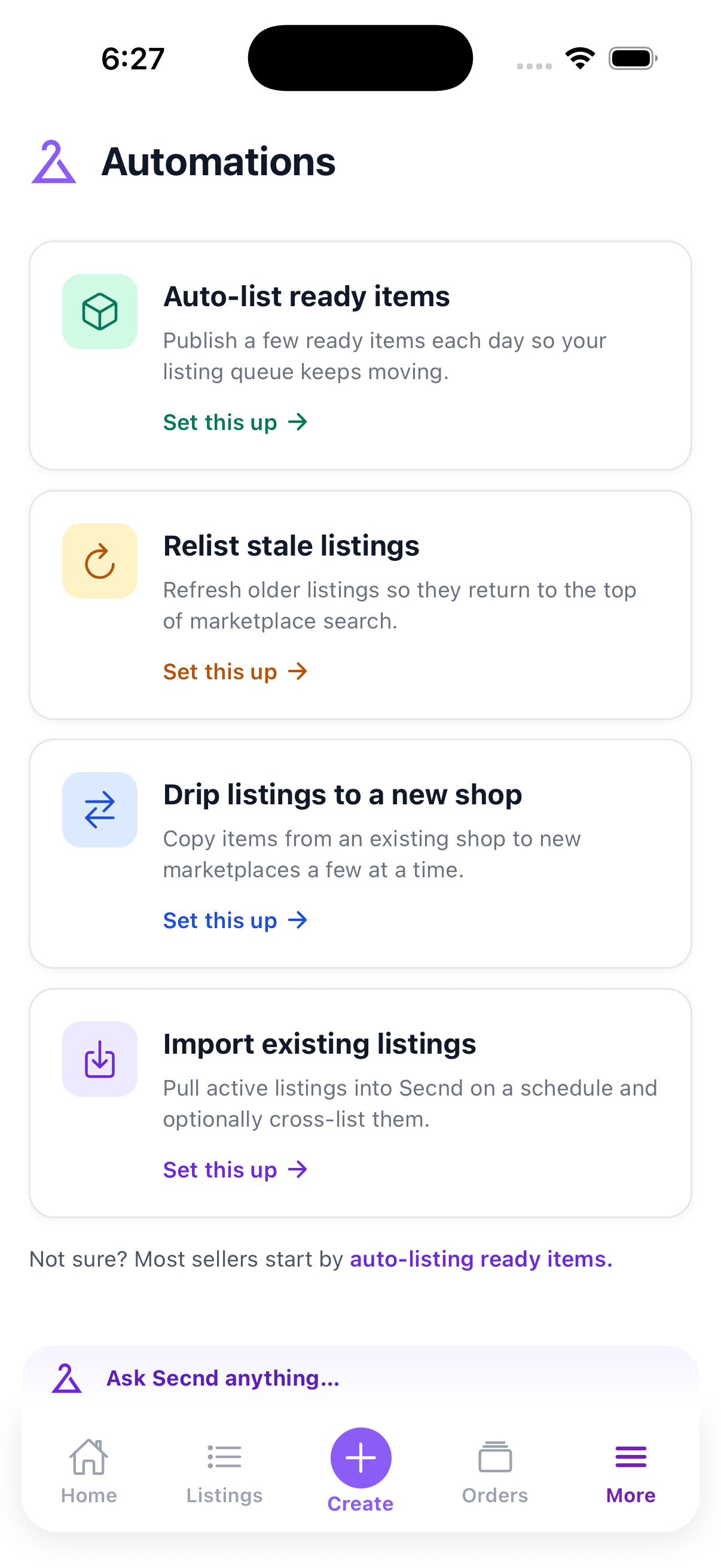
- Auto-list ready items posts items you added to your listing queue, a set number per run.
- Relist stale listings takes down listings that have been up longer than you choose and posts them again as they are.
- Drip listings to a new shop copies items that are live on one shop to other shops, a set number per day.
- Import existing listings pulls active listings from a connected shop into SECND and can list them on your other shops.
You can set up each template once on mobile. After you create one, its card leaves the Add another automation list; change the existing one with Change settings. The web app has the same templates (see Building Your First Automation).
Schedules and limits
Tap the schedule in the sentence to open When should this run? Choose a preset:
- Every weekday morning: 9 AM, Monday to Friday.
- Every Monday morning: 9 AM, once a week.
- Every day, mid-day: noon, every day including weekends.
Or use Custom schedule: type a time in 24-hour form, such as 09:00 or 14:30, and tap the days. SECND uses your phone's time zone when you save.
| Template | Default schedule | Default amount |
|---|---|---|
| Auto-list ready items | Every weekday at 9 AM | 10 items per run |
| Relist stale listings | Every Sunday at 10 AM | Listings up more than 30 days |
| Drip listings to a new shop | Every day at 11 AM | 10 items per day |
| Import existing listings | Every weekday at 9 AM | 25 items per run |
A run handles at most 50 items, whatever number you set.
Plans
Automations are included on plans with selling automations (see Choose a plan). On a plan without them, each template shows the plan it needs, and tapping it opens the upgrade screen. Automations you already set up stay saved but show Paused on your plan, and their runs are skipped. The banner counts skipped runs and offers Upgrade to the plan you need.
Manage automations
Use the switch on an automation card to pause or enable it. A paused card reads Paused; the banner at the top reads All automations paused or shows how many are running. A running card shows its next run and the date it last ran.
- Change settings opens Edit automation. Change any choice and tap Save changes.
- See activity opens Automation activity, newest run first. Each run reads Completed, Completed with issues, Failed or Running. Tap a run to see each step with its succeeded, failed and skipped counts, then View items for the items themselves. Runs with failures filters the list.
- The … menu has Run now, which starts a run straight away outside the schedule, and Delete. Deleting asks Delete automation? and notes that listings already posted stay live.
Custom pipeline automations run here, but you edit their pipeline in the web app. Their card shows About this workflow instead of Change settings.
Common issues
Heads up
Heads up
Heads up
Note
Note
Have a question that isn't answered here? .