
Automation
Drip Listings to a New Shop
Copy existing inventory to new marketplaces a few items at a time.
Last updated 2026-11-17
In short
Set it up
Open the template
Choose the rules
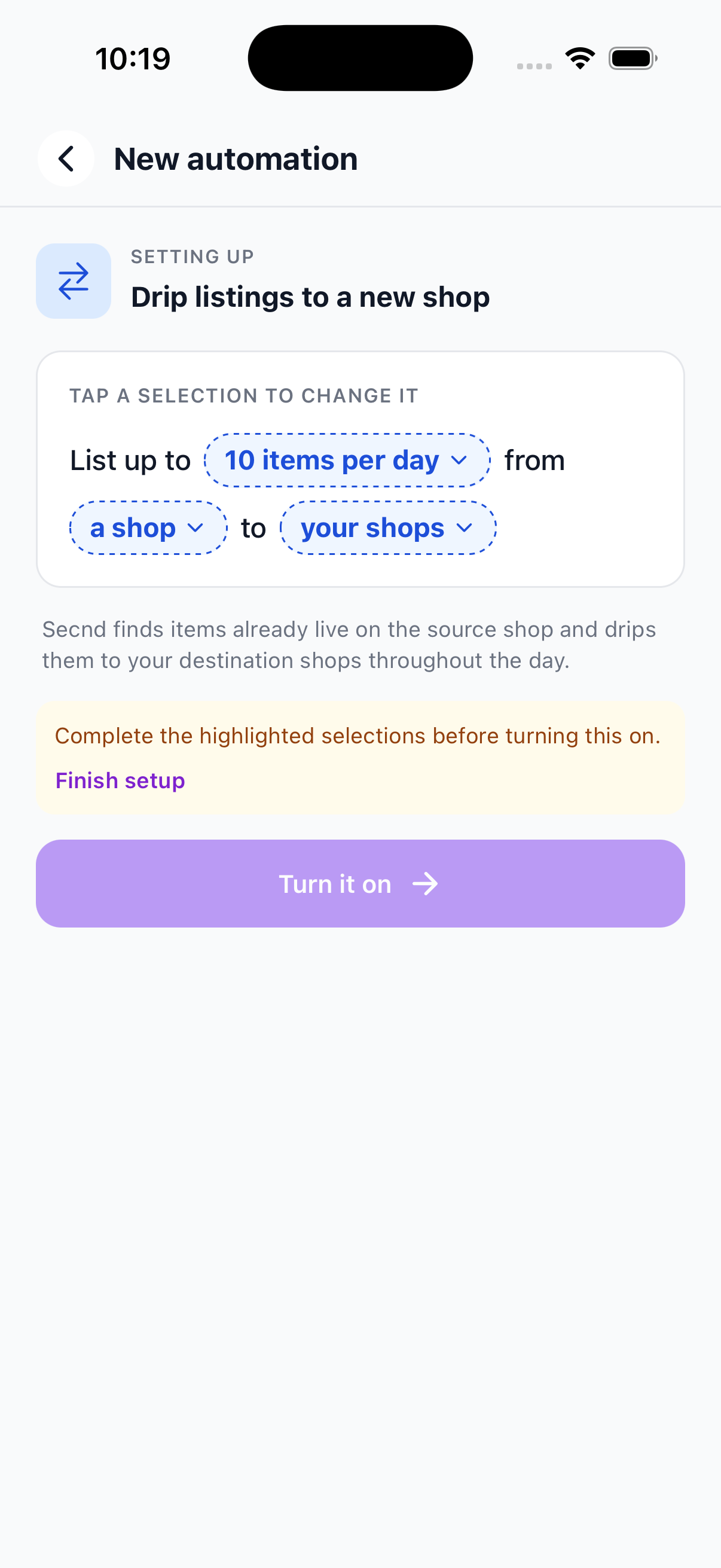
Review and enable
Manage it
Check activity
Pause, edit, or run now
Common issues
Heads up
Where the details come from
Tap the source in the sentence to open Where should the listing details come from? You choose one:
- A marketplace, such as Depop. The automation lists items that are live on that shop and copies the title, description, price and details from that shop's listing.
- Secnd. The automation lists items that are live on any marketplace, using the details saved in SECND.
Then tap the destinations to open Choose destination shops and pick one or more. Only connected shops that are ready to list appear, and the source shows Already selected as the source.
The card sums it up, for example Copy up to 10 items from your Depop listings to eBay.
Which items it picks
Each run looks for items that:
- are active in SECND and not sold,
- have a live listing on the source that has never been part of an order,
- are not already live on any of the destination shops you picked.
The oldest items in SECND go first. Right before each item is posted, SECND checks the source listing again. If it sold or ended in the meantime, the item is not posted. A run lists at most the number you set, and never more than 50 items.
To copy a handful of items right now instead, see Crosslist Listings.
Defaults and choices
- How many copies per day? 10. Presets are 5 items (gentle pace), 10 items and 25 items (faster turnover), or type a custom number from 1 to 50.
- Schedule: every day at 11 AM. This template's setup sentence has no schedule choice, so the time and days stay as set.
- Source and destinations: none until you pick them.
You can pause, edit, run or delete it like any other automation (see Set Up Automations).
More issues
Heads up
Note
Note
Have a question that isn't answered here? .